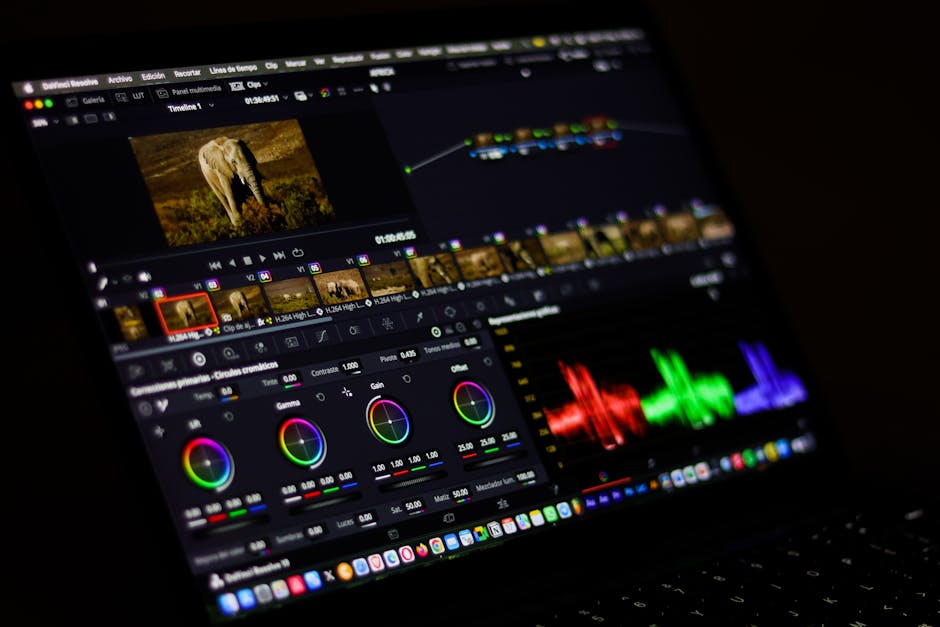
If you've stumbled across an old YouTube video like this one at https://www.youtube.com/watch?v=Hre0msFbpXg and cringed at how soft, grainy, or low-resolution it looks compared to today's standards, you're not alone. Millions of videos uploaded before 2015 were captured and compressed at 480p or 720p, and they show every bit of their age on modern 4K monitors and TVs. The good news: professional video upscaling has advanced dramatically, and restoring that footage to a crisp, modern resolution is genuinely achievable without re-shooting a single frame.
Why Old YouTube Videos Look So Bad Today
The problem isn't just resolution. When you upload a video to YouTube, the platform re-encodes it using its own compression algorithms, which strips away detail and introduces artifacts, especially in older uploads processed under legacy encoding rules. Stack that on top of footage originally shot on consumer camcorders, early DSLRs, or even phones from the mid-2000s, and you end up with a perfect storm of:
- Low native resolution (240p, 360p, or 480p)
- Heavy macro-blocking from YouTube's older H.264 compression
- Color banding and crushed shadows
- Motion blur and interlacing artifacts from older camera sensors
- Digital noise from small sensors shooting in low light
Simply dragging the video into a timeline and exporting at 4K doesn't fix any of this. It just stretches the same bad pixels across a bigger canvas.
What Professional Video Upscaling Actually Does
Modern AI-driven upscaling uses neural networks trained on millions of video frames to intelligently reconstruct missing detail rather than just interpolate between existing pixels. This is a fundamentally different process from the bicubic or bilinear scaling built into editing software like Premiere Pro or DaVinci Resolve.
Here's what a professional enhancement pass typically involves:
1. Artifact Removal Before Upscaling
Upscaling a heavily compressed video before cleaning it is like framing a water-damaged photo before restoring it. The right workflow starts with deblocking and denoising passes that target the specific compression artifacts in the source. This recovers edge definition and tonal gradients that upscaling algorithms can then work with accurately.
2. AI Super-Resolution
Tools like Topaz Video AI, Neat Video, and proprietary neural models analyze the content of each frame and synthesize realistic detail based on what the AI has learned from high-resolution source material. Skin textures, fabric weaves, text edges, and background detail all benefit differently, which is why a one-size-fits-all preset rarely produces the best result. Professional operators dial in model selection and parameters per clip.
3. Frame Rate Conversion and Motion Smoothing
Old footage shot at 24fps or even 15fps can look choppy on modern displays. Optical flow interpolation can generate synthetic in-between frames to smooth motion, though this requires careful handling to avoid the so-called "soap opera effect" that looks unnatural on cinematic content. Getting this balance right is a judgment call that experience makes much easier.
4. Color Grading and HDR Finishing
Once the footage is upscaled, the expanded resolution often reveals how flat or color-cast the original grade was. A finishing pass to correct white balance, lift shadows, and optionally convert to a Rec. 2020 or HDR10 color space makes the final output feel genuinely modern, not just technically larger.
How Much Can You Realistically Improve?
This depends heavily on the source quality. Here's a practical breakdown:
- 480p YouTube source: Can upscale cleanly to 1080p; 4K output is possible but soft detail will remain in very complex scenes.
- 720p source: Upscales excellently to 4K with minimal visible compromise.
- 1080p source with heavy compression: Artifact removal and a 4K upscale typically yield results that are indistinguishable from native 4K to most viewers.
- Interlaced SD footage (DVD rips, old TV captures): Requires deinterlacing first; results are good but not as sharp as progressive-scan sources.
The honest answer is that upscaling recovers lost clarity and modernizes the look, but it cannot invent detail that was never captured. Managing that expectation upfront is something reputable studios do before any work begins.
Common DIY Mistakes to Avoid
If you're considering attempting this yourself, watch out for these pitfalls:
- Skipping artifact removal: Running upscaling directly on a heavily compressed file will make macroblocking and ringing worse, not better.
- Over-sharpening: AI models can over-synthesize texture, creating a crunchy, over-processed look. Subtlety wins.
- Wrong model selection: Using a model trained for animation on live-action footage, or vice versa, produces noticeably wrong results.
- Ignoring audio: If the video has audio, YouTube's re-encoding often degrades it too. Enhanced video paired with tinny, compressed audio kills the overall quality impression.
- Exporting in the wrong codec: A 4K upscale exported as a low-bitrate H.264 file re-introduces many of the compression problems you just removed. Use H.265/HEVC or ProRes for archiving.
When Professional Enhancement Is Worth It
DIY tools have improved significantly, but professional processing makes the most sense when:
- The content has genuine sentimental, archival, or commercial value
- You need consistent results across a batch of clips
- The source has multiple overlapping problems (noise, compression, interlacing, and color issues all at once)
- You need broadcast or streaming platform delivery specs met
- Your time is better spent elsewhere
For creators repurposing older content for YouTube Shorts, Instagram Reels, or commercial reuse, the quality gap between a DIY pass and a professional one is often visible enough to matter for brand perception.
What to Send Us for the Best Results
If you're ready to have your footage professionally enhanced, here's how to set the project up for success:
- Send the highest-quality source file you have, even if it looks bad. A 480p original is better than a screenshot or a screen recording of the video.
- If you downloaded the video from YouTube, use a tool that gives you the original uploaded file format rather than a re-compressed version.
- Note the intended output: social media delivery, broadcast, personal archive, or commercial use. Each has different spec requirements.
- Let us know if the audio also needs cleanup. It usually does.
The Bottom Line
Old footage doesn't have to stay old-looking. Whether it's a decade-old YouTube video like the one that inspired this post, archived event recordings, or a library of legacy brand content, modern AI upscaling and enhancement techniques can breathe real life back into low-resolution media. The key is pairing the right tools with experienced hands that know when to push the processing and when to hold back.
At Pixel 360 Media, we handle video enhancement and upscaling projects every day, from single clips to large batch archives. If you have footage you'd like to restore, upscale, or prepare for modern distribution, we'd love to take a look. Send us your files or describe your project for a free quote, and we'll tell you exactly what's possible.
Stay Updated
Get the latest tips on video enhancement, photo restoration, and audio cleanup delivered to your inbox.
No spam. Unsubscribe anytime.